Managing User Accounts
Semaphore users a Role Based Access Control model to manage permissions at the organization and project level.
Manage your user profile
You can manage your Semaphore user profile details such as email address, username, and access token.
How to change your username
To change your Semaphore username, follow these steps:
-
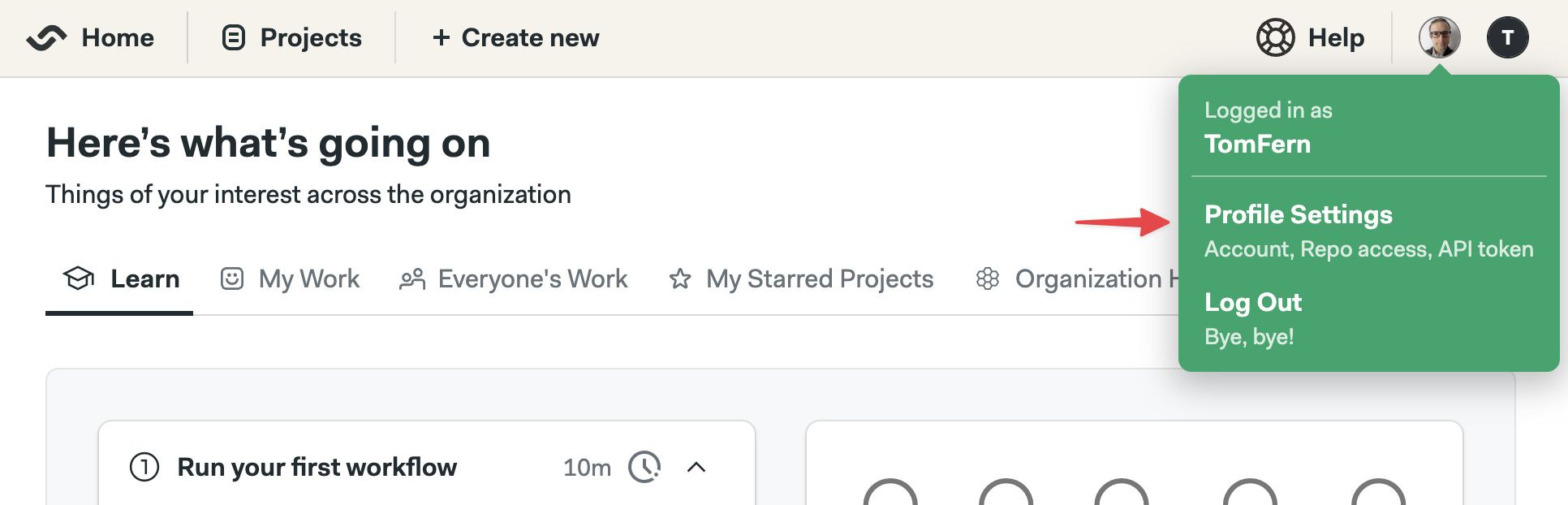
Open your user menu on the top-right corner
-
Select Profile settings
-
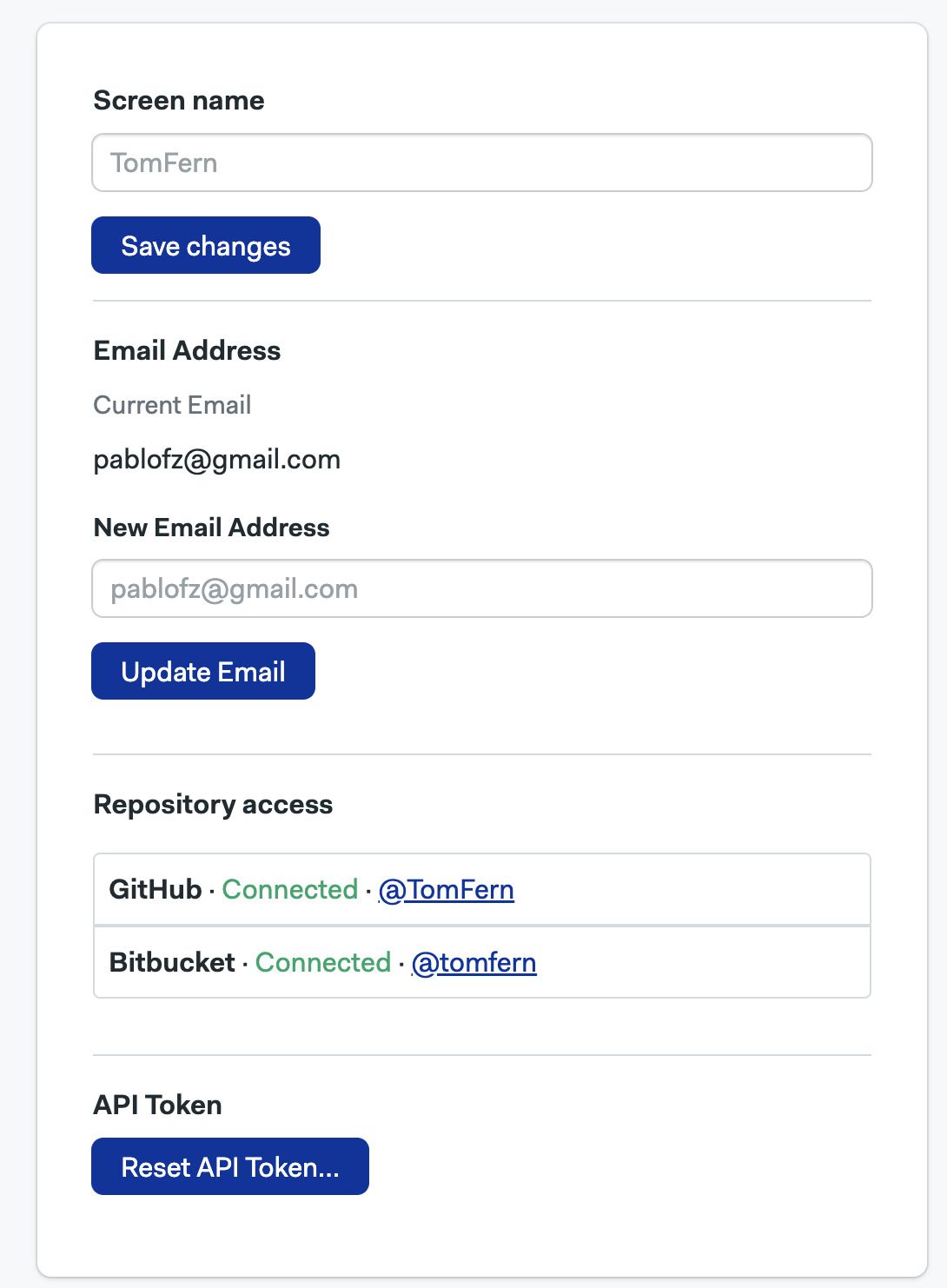
Under Screen name, type your new name
-
Press Save changes
How to change your email address
Changing your user profile email address can revoke access to integrations such as GitHub and BitBucket. You may need to reconnect your repositories after changing your email address.
To change your Semaphore email address, follow these steps:
-
Open your user menu on the top-right corner
-
Select Profile settings
-
Under Email Address, type your email address
-
Press Update email
-
Confirm the change
How to reset your personal API token
Changing your access token will revoke access to the Semaphore API and access via the Semaphore CLI. Only reset your token if you have lost access to it or suspect someone else has been using it on your behalf.
To reset your Semaphore API token, follow these steps:
-
Open your user menu on the top-right corner
-
Select Profile settings
-
Under API Tokek press Reset API Token
-
Confirm the change, copy the new to token and save it on a safe place
Managing Semaphore users
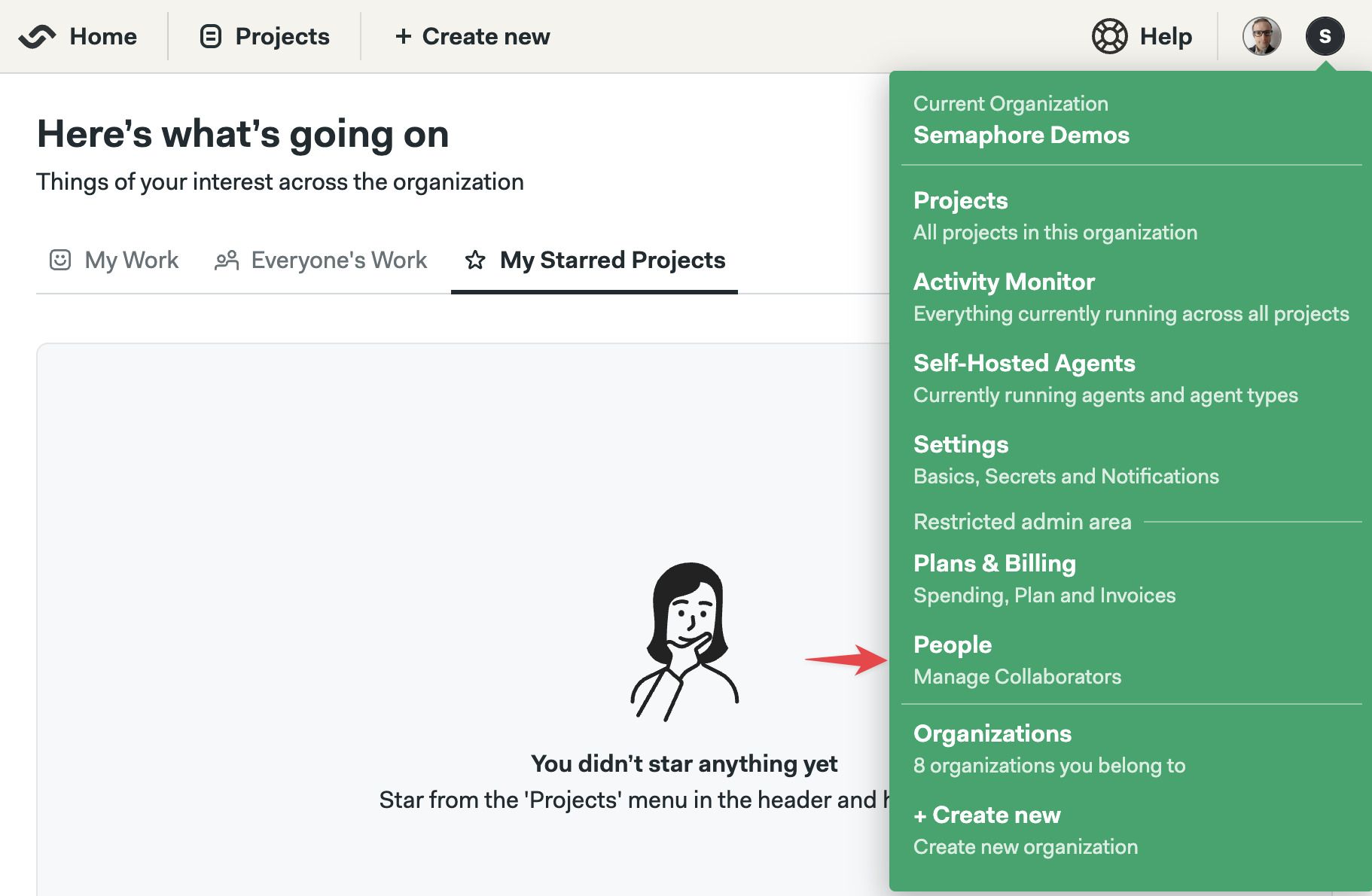
To manage users in your organization, open the organization menu and select People. This tab shows users and groups in your organization along with their roles and groups.
How to invite users
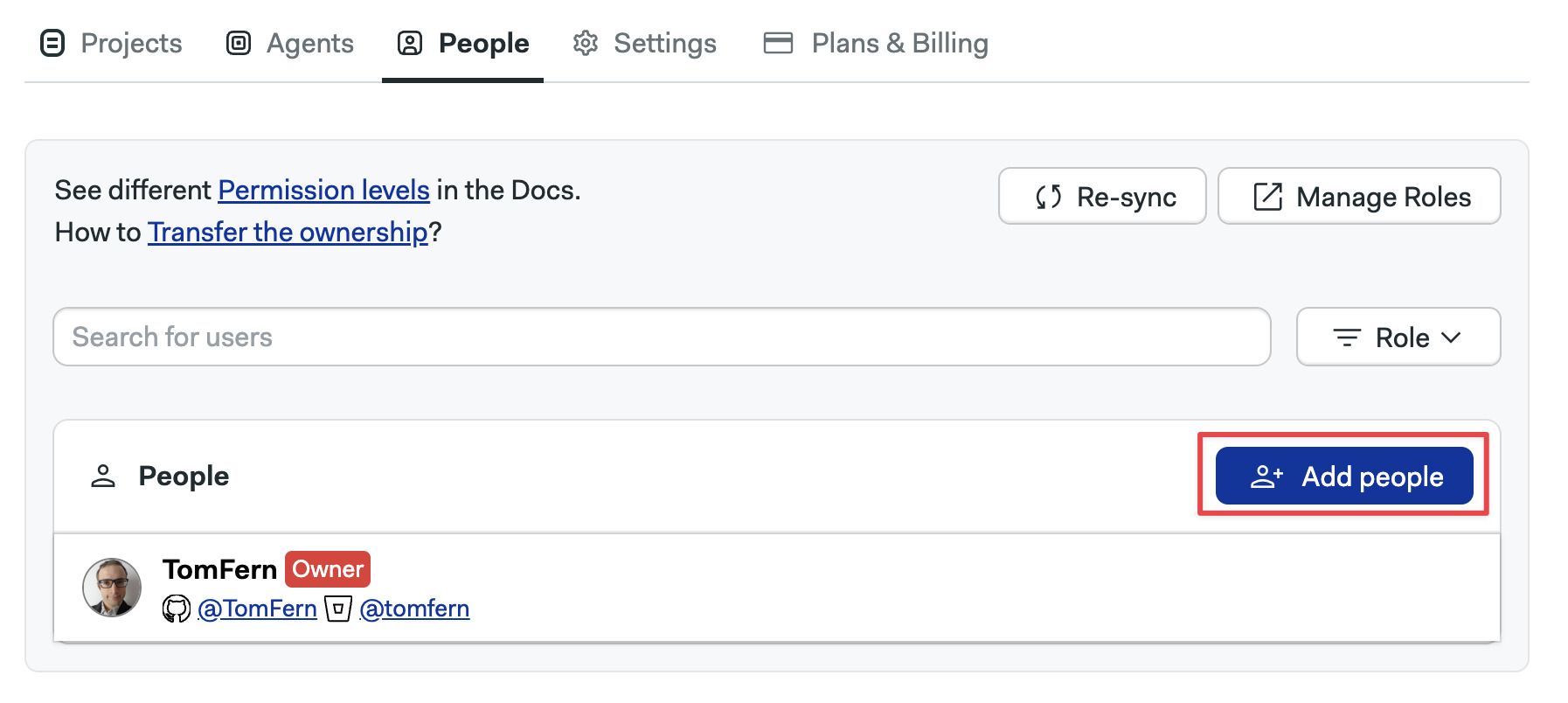
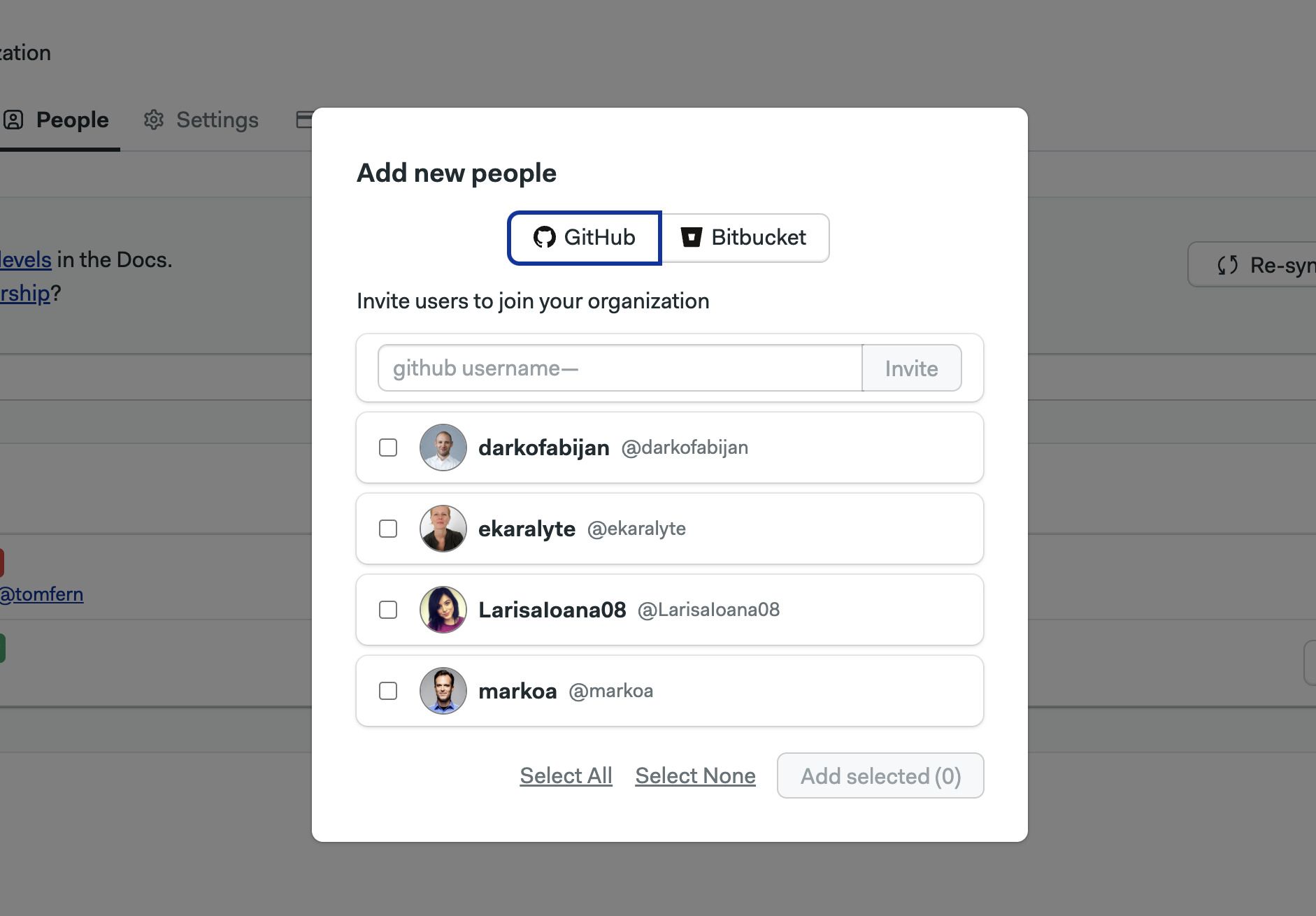
To invite a user to your organization, press the Add people button:
-
Select one of the available tabs
-
Type the user's handle, e.g.
TomFern, or select the user from the list. Usernames are case-sensitive and all characters are considered. Ensure the handle is entered accurately to avoid errors. -
If you don't see the user in the list. Ensure they have repository access in GitHub or BitBucket for at least one project in your organization
-
-
Press Add selected
-
Optionally, set their role
If you see an error with the message "error finding USERNAME: 401", it's likely that the your Semaphore account, as the inviter, is no longer linked to GitHub or BitBucket.
To fix the issue, reconnect your account by granting access again via GitHub or Bitbucket. This should restore your ability to send invitations.
How to remove users
Users can only be removed from the organization when they don't own any projects. You must transfer the ownership of all the user's projects before they can be removed from the organization.
To remove a user, go to the people option in the organization menu and follow these steps:
-
Transfer any project ownership the user may have to another individual. The user must not own any projects
-
Press the X button next to the username of the user you want to remove
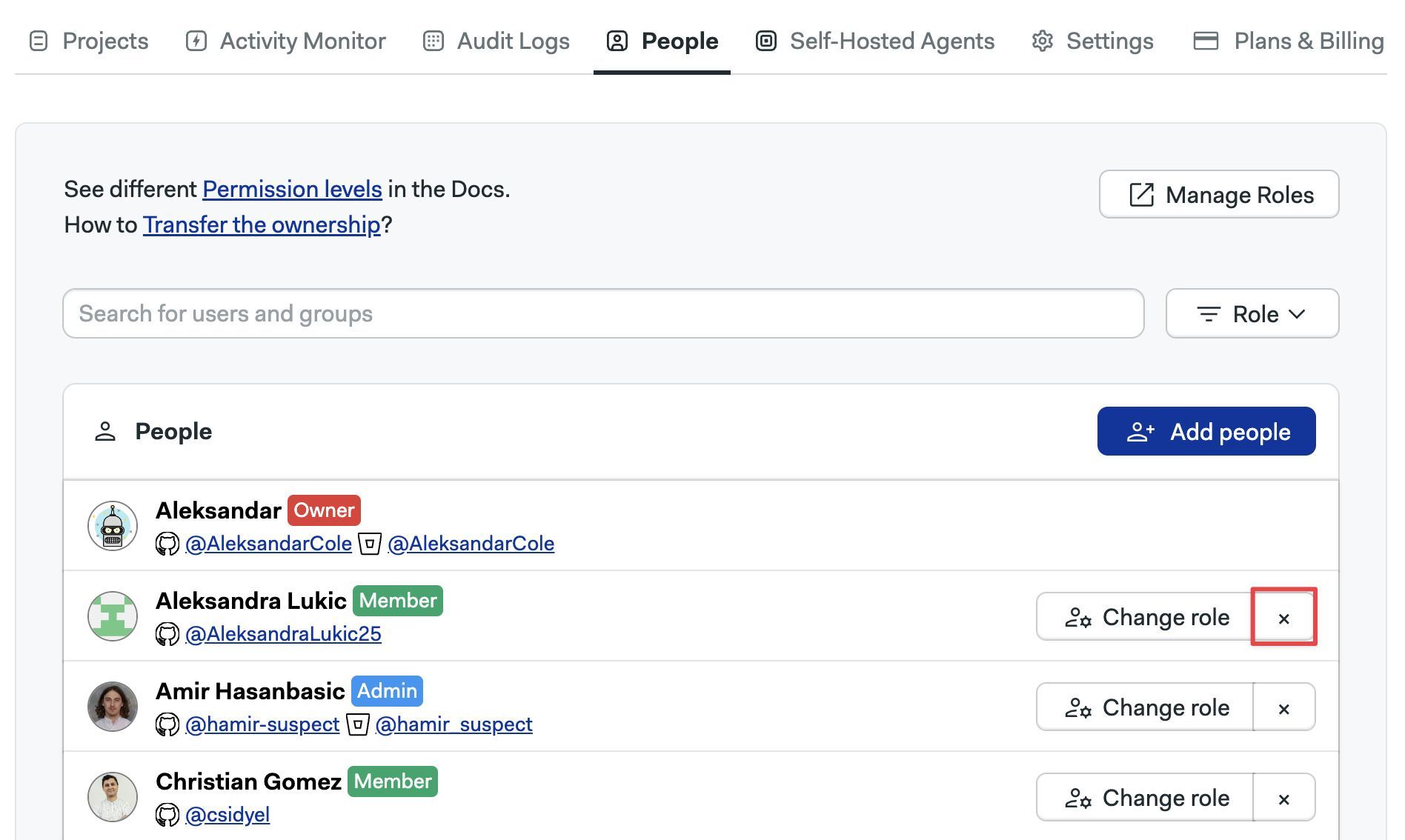
Upon removal, access to all projects in the organization are revoked.
Only an Admins, Owner, or dedicated custom roles can remove users from the organization.
How to change user roles
To change the role of a user, press the Change Role button next to the person.
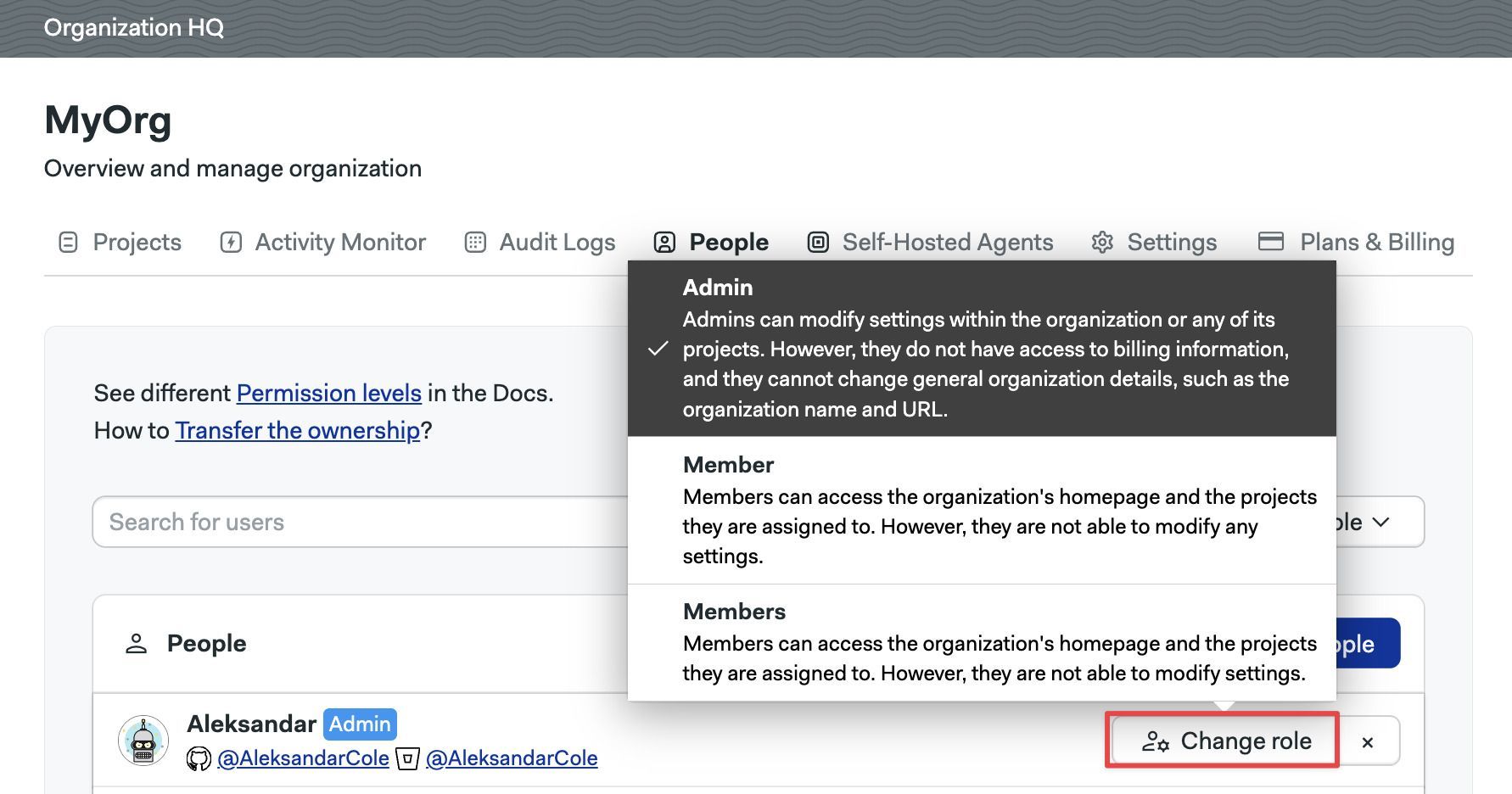
See organization roles to learn what roles are available.
How to create groups
User groups streamline user management by allowing bulk actions. After creating a group, you can:
- Add members to the group
- Assign a role to the group
All members of the group automatically inherit the permissions associated with the assigned role.
As an example, let's say you want to give the Finance team access to the Audit logs featur in your organization. To achieve that you can:
- Create a custom role with view permissions on the Billing page
- Create a Auditors group
- Assign the new custom role to the group
- Add everyone in the Auditor team to the group
- As the team changes, you can add or delete persons from the group
To create a group, open the organization menu and select People.
-
Press on Create group
-
Type in the group name and description
-
Type the names of the persons to add to the group
-
Press Save changes to create the group
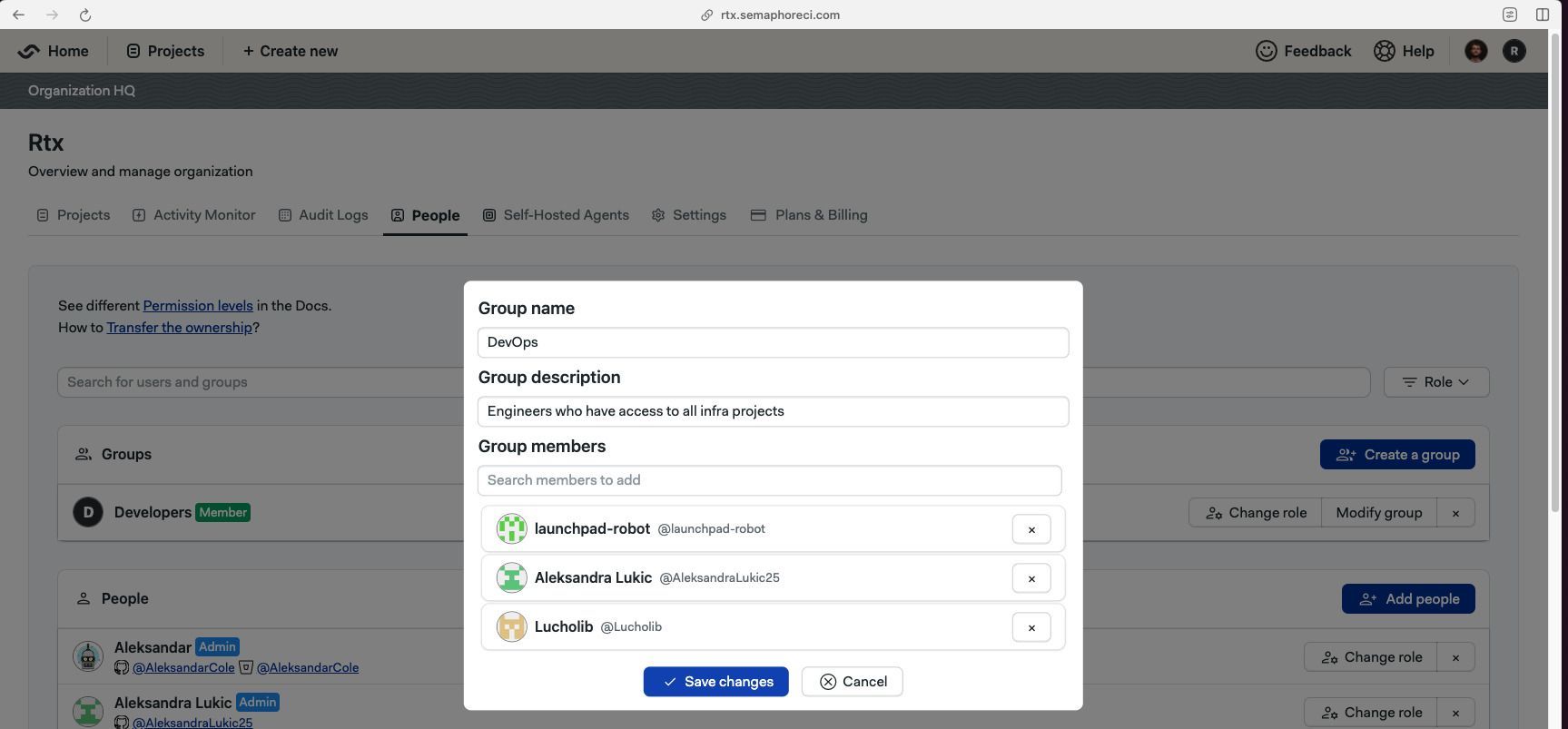
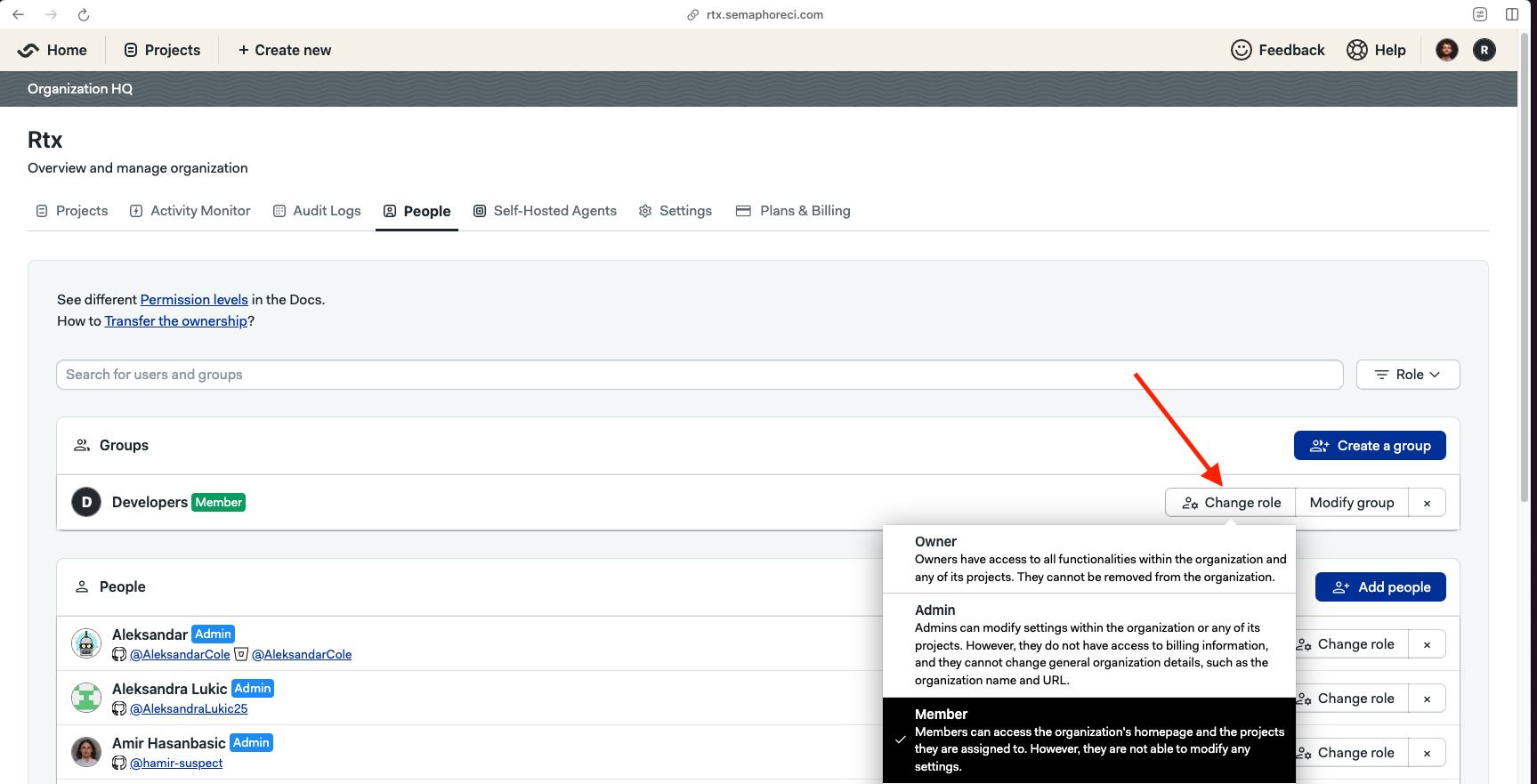
The new group has the member role by default. You can change it by pressing the Modify Role button and selecting a different role.
You can also define custom organization roles if none of the pre-defined roles suit your needs.
How to change group roles
To change the role of a group, press the Change Role button next to the group.
How to add members groups
To add or remove users in a group, press the Modify group button next to it.
- Press the X button to remove the user from the group
- Type the name of the persons you want to add to the group
- Press Save changes to finish editing the group
How to view pre-defined roles
Semaphore provides pre-defined roles for organizations. You can see what actions each role can perform by following these steps:
Managing users
Semaphore users a Role Based Access Control model to manage permissions at the server and project level.
To manage users in your server, open the server menu and select People. This tab shows users and groups in your server along with their roles and groups.
How to create users
To create new accounts, go to the people option in the server menu and follow these steps:
-
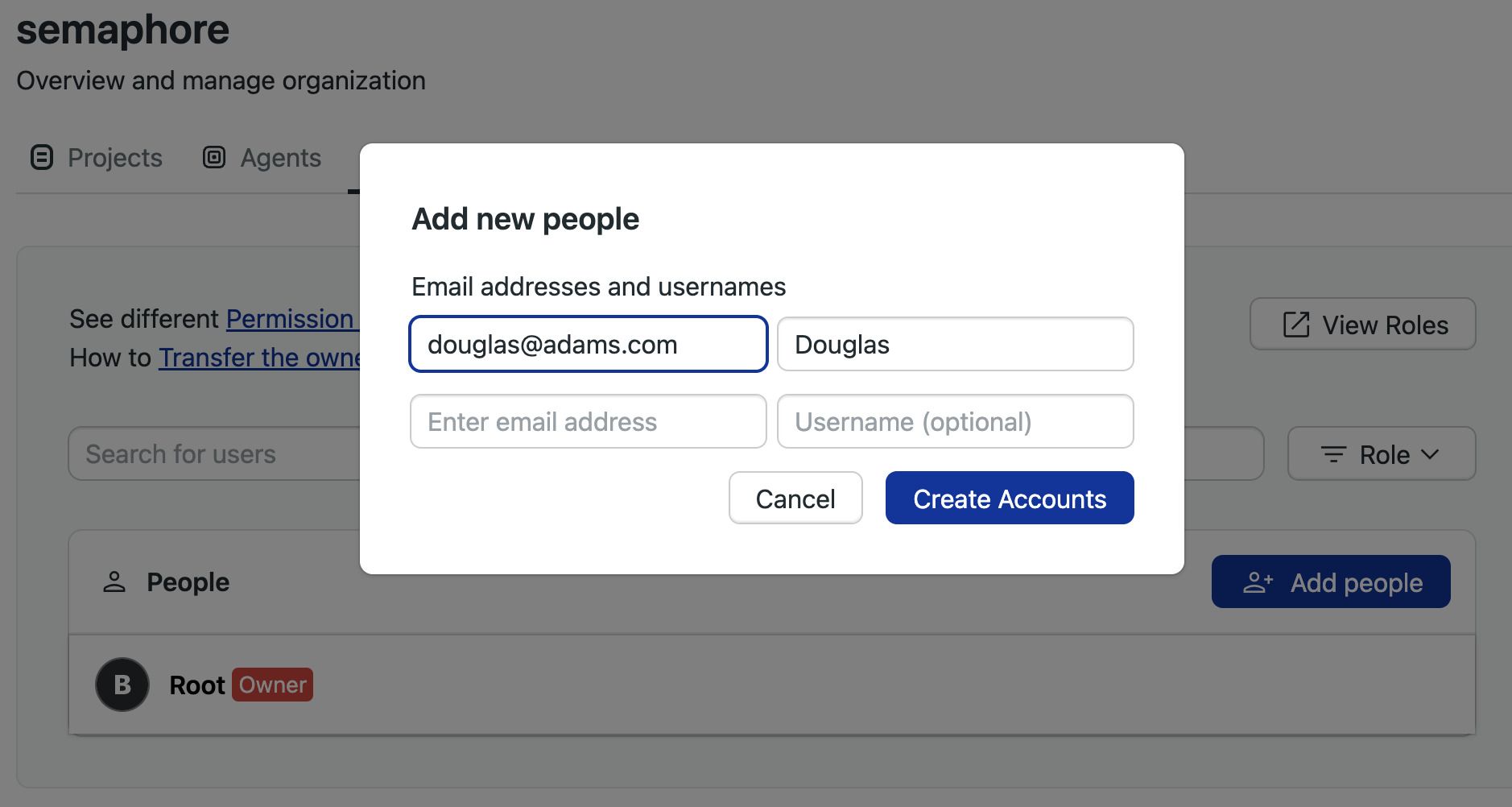
Press Add people
-
Type the email of the persons you wish to invite
-
Optionally, set a username. If not provided, the username is inferred from the email
-
When you are done adding users, press Create Accounts
-
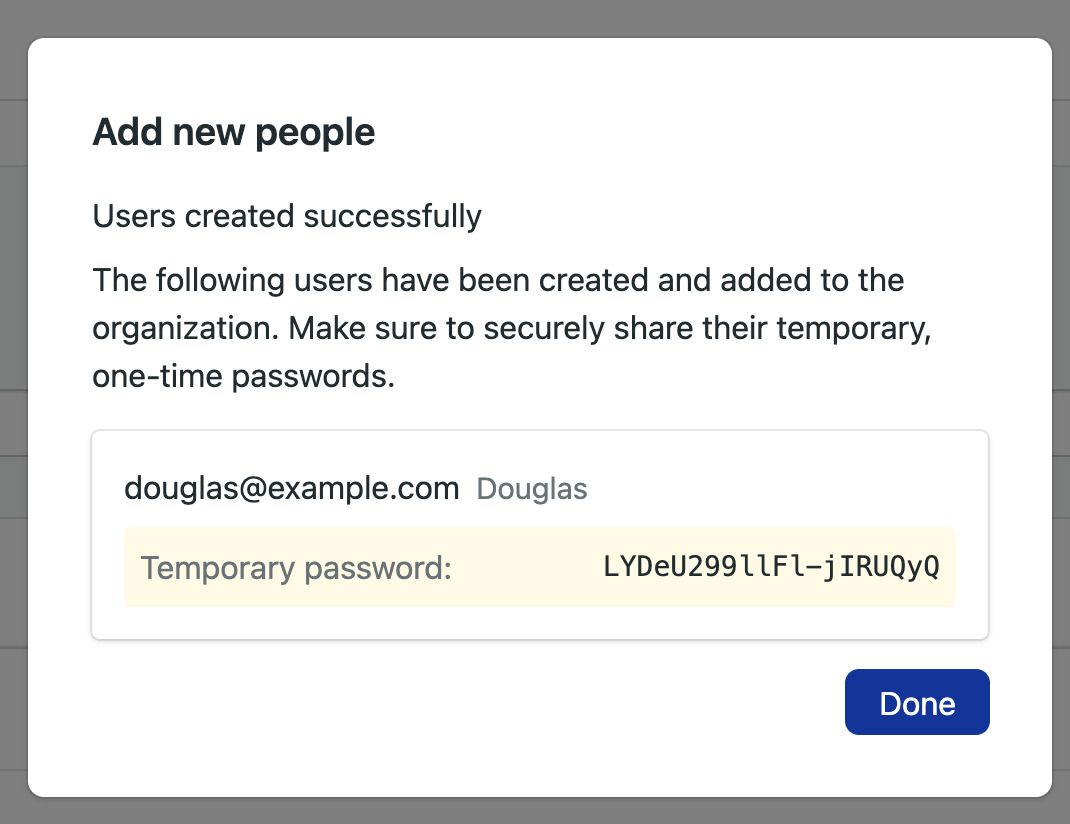
Take note of the temporary passwords for each account
-
When the new user first logs in with the temporary password, they will be prompted to create a new one. After that, they can start using Semaphore normally.
How to remove users
Users can only be removed from the server when they don't own any projects. You must transfer the ownership of all the user's projects before they can be removed from the server.
To remove a user, go to the people option in the server menu and follow these steps:
-
Transfer any project ownership the user may have to another individual. The user must not own any projects
-
Press the X button next to the username of the user you want to remove
Upon removal, access to all projects in the server are revoked.
Only an Admins, Owner, or dedicated custom roles can remove users from the server.
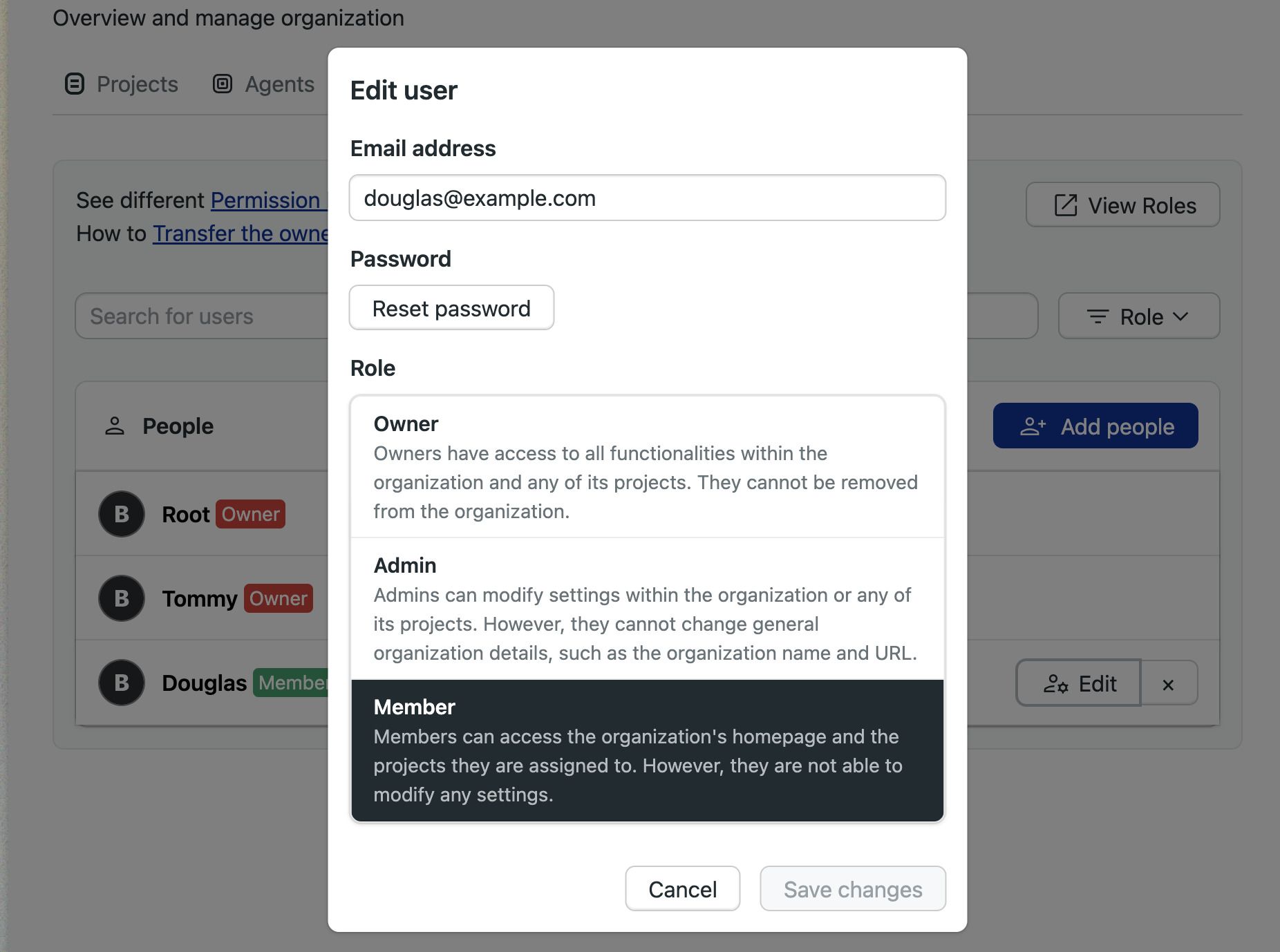
How to change a user role
To change user roles, go to the people option in the server menu and follow these steps:
-
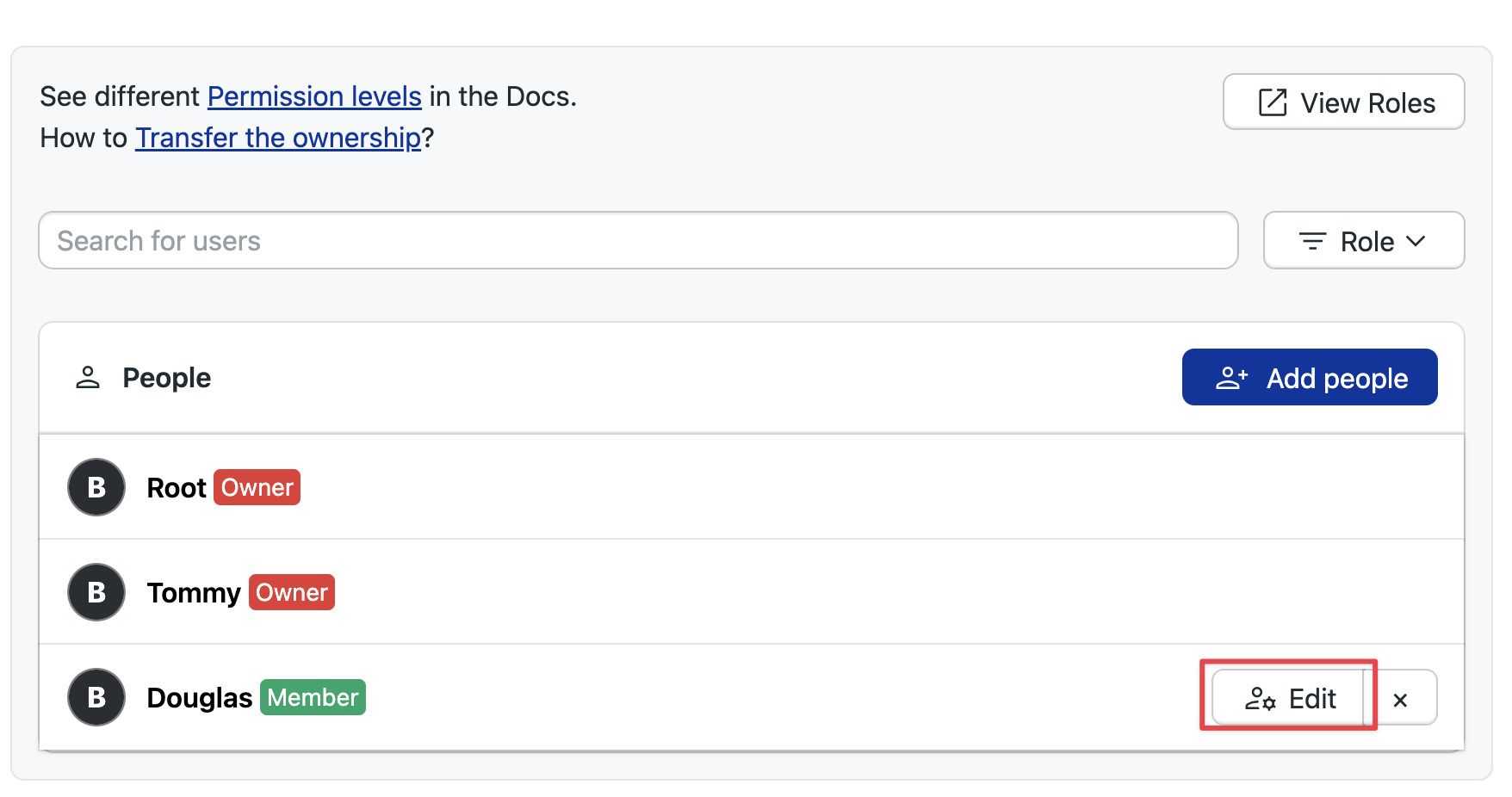
Press the Edit button next to the user you want to change
-
Select the new role
How to reset a user password
To reset a user password, go to the people option in the server menu and follow these steps:
-
Press the Edit button next to the user you want to change
-
Press the Reset password button
-
Press Reset password
-
A new temporary password will be generated
-
When the user logs in with the temporary password they will be prompted to create a new password
How to create groups
User groups streamline user management by allowing bulk actions. After creating a group, you can:
- Add members to the group
- Assign a role to the group
All members of the group automatically inherit the permissions associated with the assigned role.
As an example, let's say you want to give the Audit team access to the Audit logs in your server. To achieve that you can:
- Create a custom role with view permissions on the Billing page
- Create an "Auditors" group
- Assign the new custom role to the group
- Add everyone in the Auditor team to the group
- As the team changes, you can add or delete persons from the group
To create a group, open the server menu and select People.
-
Press on Create group
-
Type in the group name and description
-
Type the names of the persons to add to the group
-
Press Save changes to create the group
The new group has the member role by default. You can change it by pressing the Modify Role button and selecting a different role.
You can also define custom server roles if none of the pre-defined roles suit your needs.
How to add members groups
To add or remove users in a group, press the Modify group button next to it.
- Press the X button to remove the user from the group
- Type the name of the persons you want to add to the group
- Press Save changes to finish editing the group
How to view pre-defined roles
Semaphore provides pre-defined roles for the server. You can see what actions each role can perform by following these steps:
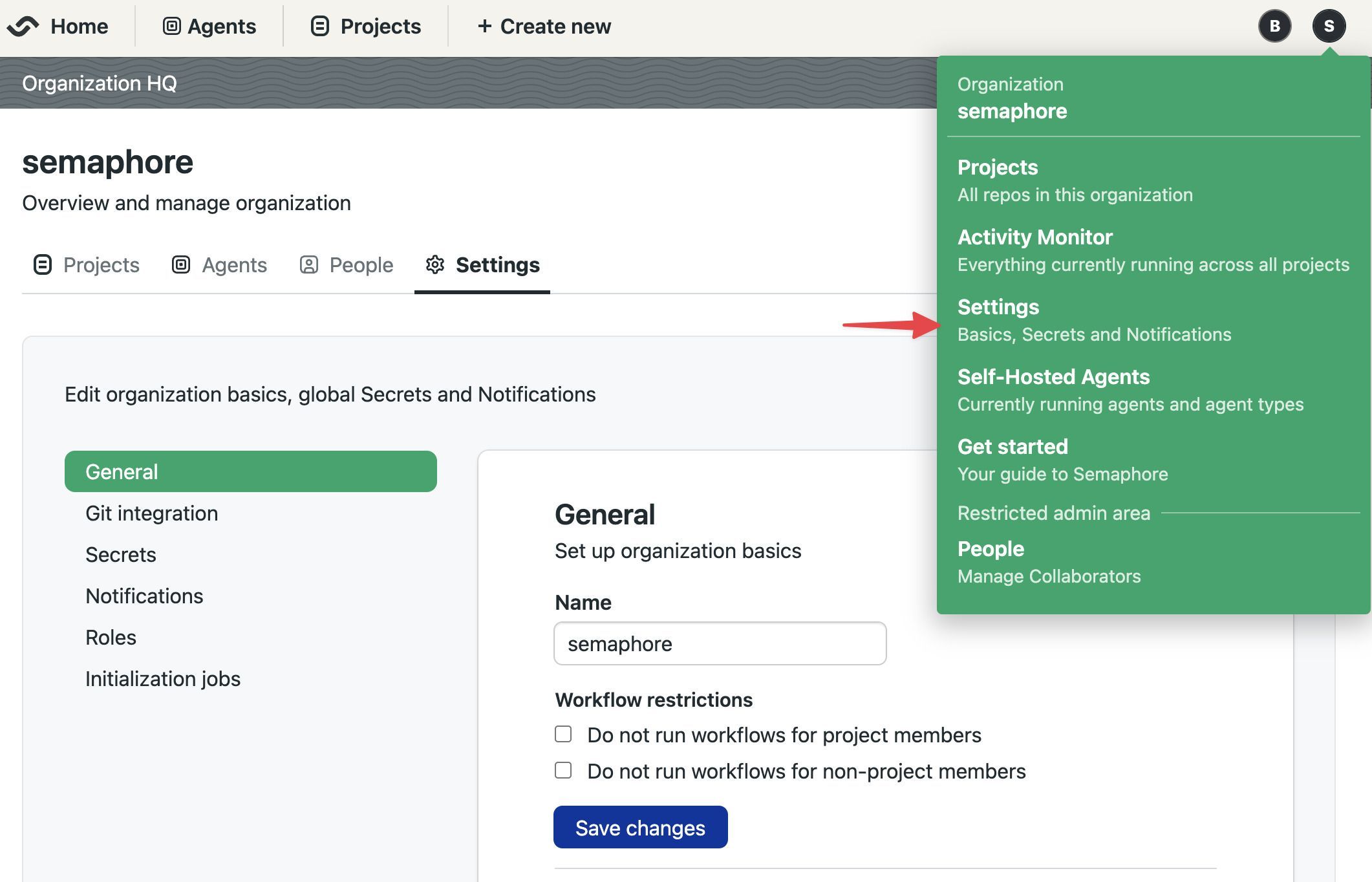
-
Open the server Settings menu
-
Select Roles
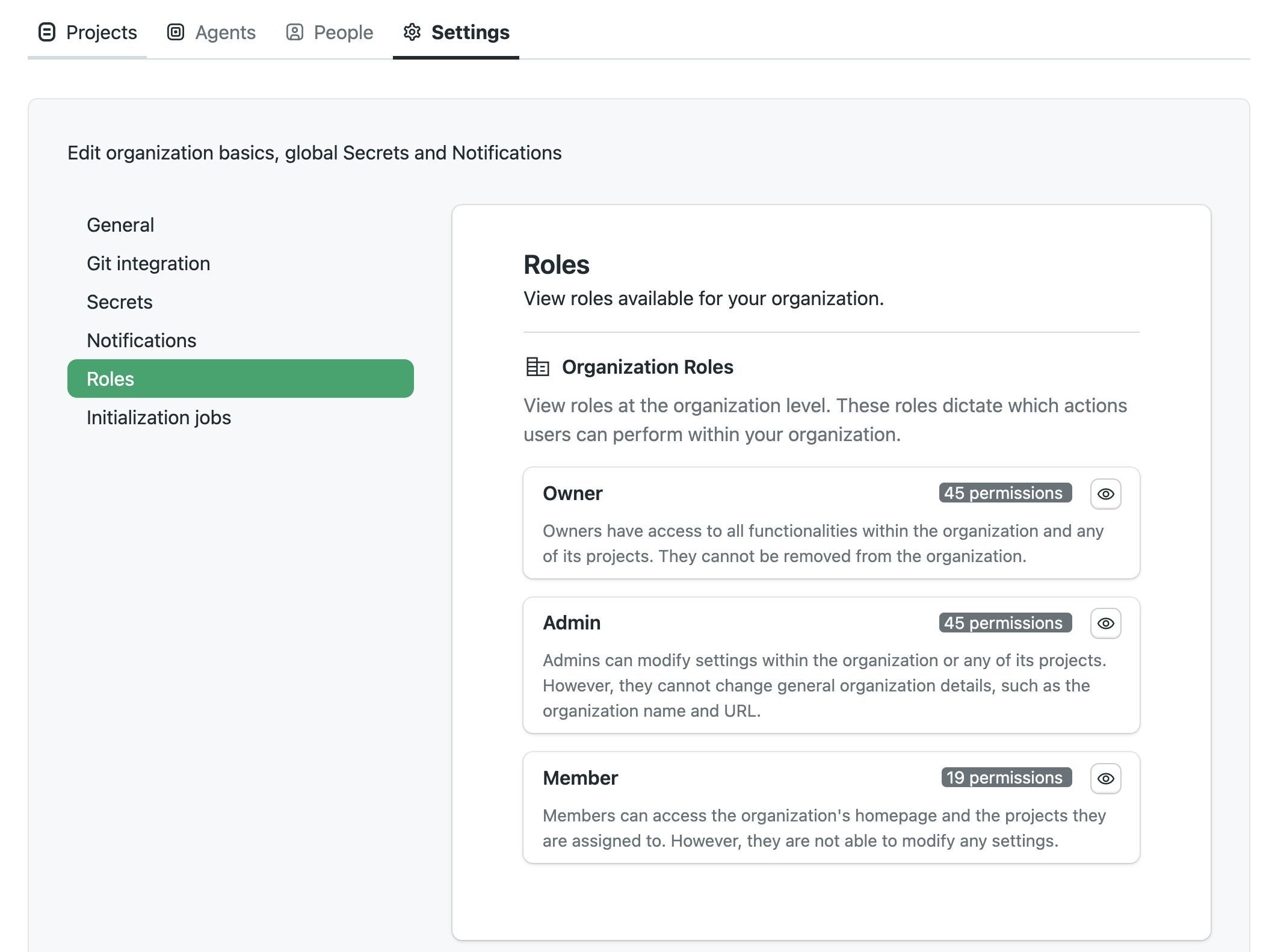
-
In the Organization Roles section, press the eye button next to the role you want to examine
The actions with enabled checkbox are allowed for that role.
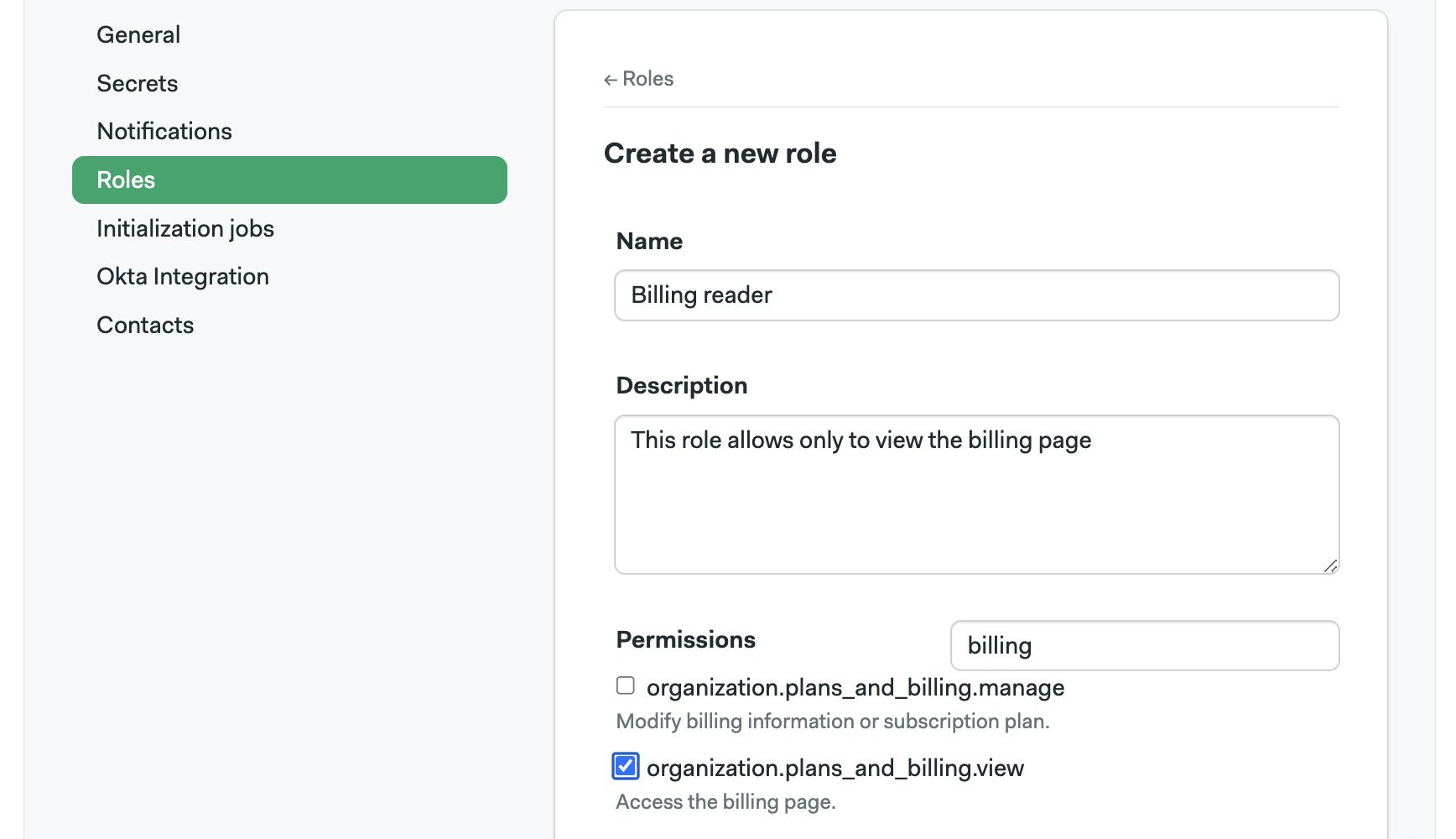
How to create custom roles
Create custom roles to give your users the precise permissions they need.
-
Open the serve Settings menu
-
Select Roles
-
On the Organization Roles section, press New Role
-
Give a name a description to the new role
-
Enable the permissions allowed to the role. You can use the search box to narrow down options
-
Press Save changes
Semaphore users a Role Based Access Control model to manage permissions at the instance level.
To manage users in your Semaphore instance, open the server menu and select People. This tab shows users and groups in your instance along with their roles and groups.
How to view permissions for roles
Semaphore provides pre-defined roles. These permissions cannot be changed (but new roles can be added, see. You can see what actions each role can perform by following these steps:
-
Open the server Settings menu
-
Select Roles
-
In the Organization Roles section, press the eye button next to the role you want to examine
The actions with enabled checkbox are allowed for that role.