Self-hosted Agents
Self-hosted Agents lets you run jobs on your own hardware. This page explains what self-hosted agents are and how to install them on several platforms.
Overview
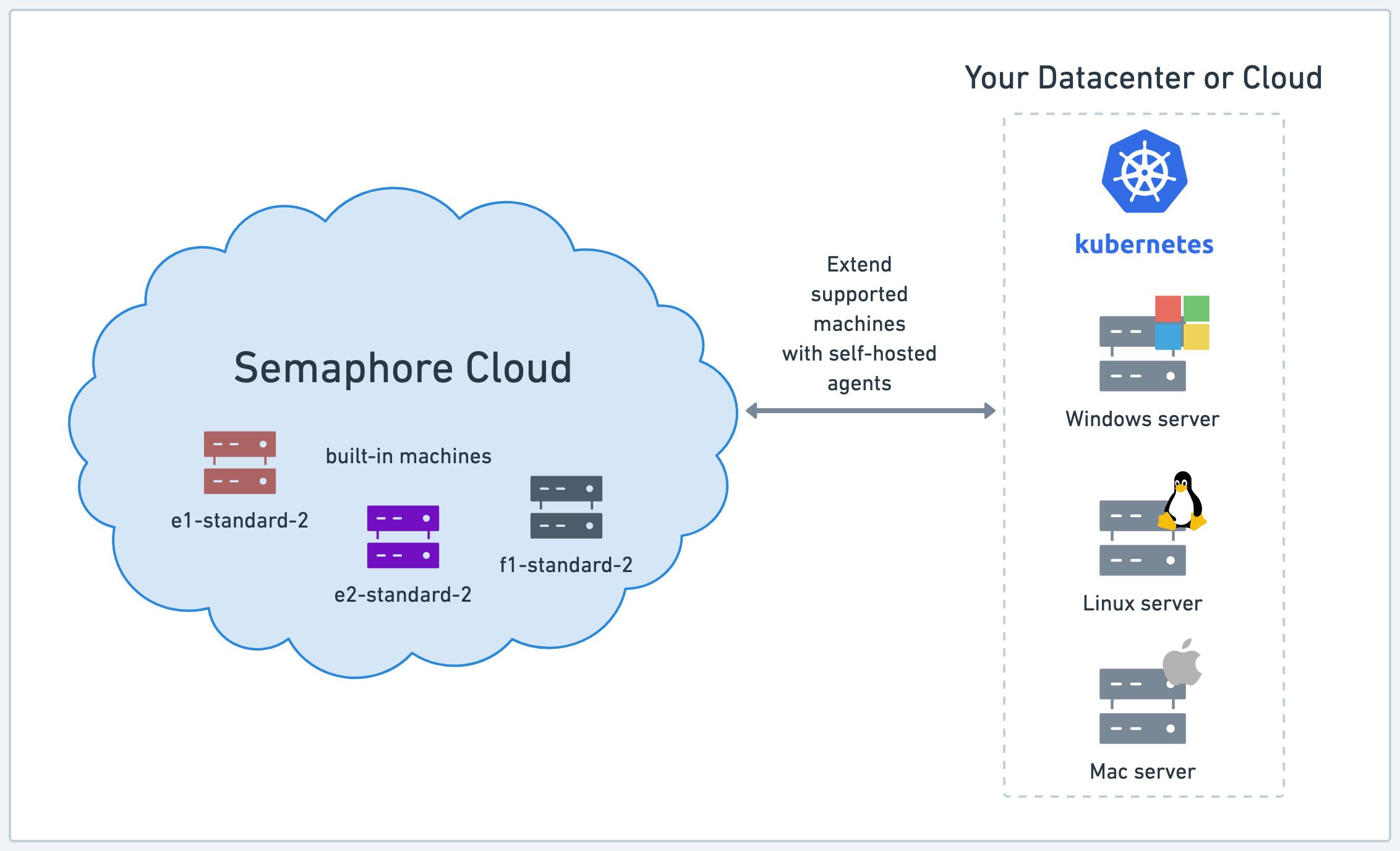
An agent is a physical or virtual machine you own that can be dedicated to running Semaphore jobs. You can mix and match your own agents with the machines provided by Semaphore.
Self-hosted agents allow you to run workflows on machines that are not currently available as part of Semaphore Cloud plans, such as GPU-enabled machines for machine learning workloads.
Self-hosted agents limitations
Jobs running on self-hosted agents have the following limitations:
- sem-service and sem-version do not work on self-hosted agents
- SSH debugging works in [a different way]
- On Kubernetes agents, only Docker based environments are supported
- The CI environment may persist between jobs on certain configurations
- Initialization jobs run on Linux agents only and require extra software in the job environment
Agent lifecycle
The agent attempts on startup to register with the Semaphore Control Plane by sending a registration request. Once registered, it waits for jobs. Repeated failure to register the agent causes it to shutdown.
The agent enters into a running state when a new job is available. Depending on its configuration, once the job is done the agent may disconnect and shutdown, or go back to the waiting state until a new job is available.
Agent communication
Self-hosted agents use one-way communication to connect with Semaphore. Requests are always initiated by the agent and secured using HTTPS TLS 1.3. This means you don't need to inbound open ports in your firewall to use Semaphore in Hybrid mode.
Registration request
When the agent boots up it sends a register request using a registration token. If the registration succeeds, the agent receives an access token to be used in all future communications and enters the waiting for job state.
A registration failure prevents the agent from connecting to the Semaphore Control Plane. Unregistered agents cannot run any jobs.
Sync request
Waiting agents periodically send sync requests to the control plane with its state information. Semaphore responds with a continue message unless there is a job in the queue to be executed, in which case Semaphore sends the jobID.
Get job request
When the agent receives a new jobID it enters the starting job state and sends a request to the /jobs endpoint. Semaphore responds with the job specs and an job log stream token.
Semaphore responds with a token used to stream the job output and the job specs, including commands, environment variables, files, prologues, epilogues, containers, among other details.
Job output request
Agents running a job periodically send sync requests along with the output of the active job. Once the job is done, the agent sends the remainder of the logs and a sync request with the job result (passed or failed).
Disconnect request
Depending on its configuration, the agent can either disconnect and shutdown after the job is finished, or go back to the waiting for job state.
Supported toolbox features
Not all of the Semaphore toolbox commands are available on self-hosted agents. In some cases, you need additional setup steps to use these features.
| Feature | Available | Notes |
|---|---|---|
| Using the cache | Optional | Using S3, GCP, or SFTP as a storage backend |
| Artifact storage | Yes | |
| Test results and flaky tests | Yes | |
| Checking code with checkout | Yes | |
| Starting debug jobs | No | See the self-hosted debug jobs |
| Changing language versions with sem-version | No | |
| Managing databases with sem-service | No |
How to run jobs in self-hosted agents
Once you have installed and configured the self-hosted agent, you can use it in your jobs by selecting the new agent type in your pipeline.
- Editor
- YAML
To run jobs on a self-hosted agent, follow these steps:
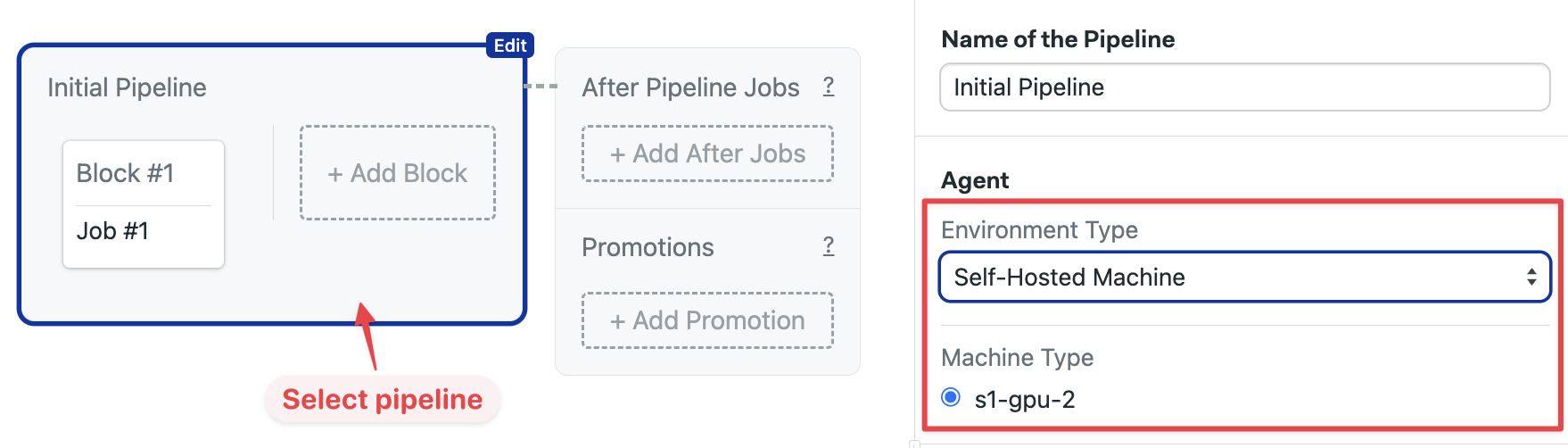
- Open your Semaphore project and press Edit Workflow
- Select the pipeline
- Under Environment Type select Self-hosted machine
- Select the machine from the selection list
You can also change the agent for a single job using the agent override option.
To run jobs on a self-hosted agent, follow these steps:
- Edit the pipeline YAML
- In
agent.machine.typeadd the agent type - Leave
os_imageas an empty string - Push the new YAML file to your repository
version: v1.0
name: Initial Pipeline
agent:
  machine:
    type: s1-gpu-2
    os_image: ''
blocks:
  - name: 'Block #1'
    task:
      jobs:
        - name: 'Job #1'
          commands:
            - checkout
You can also change the agent for a single job using the agent override option.
Job sessions
The self-hosted agent executes the job commands in two different ways depending on the platform where it is running:
- On Linux and macOS, a new PTY session is created at the beginning of every job. All commands run in that single session
- On Windows, PYT sessions are not used. Instead, each command is executed in a new PowerShell process with
powershell -NonInteractive -NoProfile
See self-hosted configuration to learn how to run jobs in isolation.
Initialization agents
If you want to run initialization jobs on self-hosted agents, you must change the default initialization agent. You can do this in two places:
- Organization: affects all projects in the organization. See organization init agent to learn how to change this setting
- Project: changes the agent running initialization for a single project. See project pre-flight checks to learn how to change this setting
Machines running initialization jobs must provide additional software. See initialization job requirements.
Initialization job requirements
Initialization jobs are supported on Linux agents only, on the x86_64 and arm64 architectures. Self-hosted macOS and Windows agents cannot run initialization jobs.
The initialization job clones the repository with Git, compiles the pipeline with spc, and uploads the compiled pipeline and the initialization log as artifacts.
Where the requirements apply
Initialization jobs run directly on the agent machine, so the software listed below must be installed there. The initialization job specifies no container of its own, so it is never run in a Docker environment — even on an agent whose regular jobs are.
Kubernetes agents are the exception: they run every job in a pod, so an initialization job uses the image set by the agent's kubernetes-default-image option, and fails with no containers specified in Semaphore YAML, and no default container is provided when that option is not set. That image must contain the Semaphore toolbox as well as a supported Erlang — the agent does not install the toolbox into pods — and the install-ordering rule in Erlang and the PATH applies when building it.
Required software
| Software | Notes |
|---|---|
| Git | Any reasonably recent version. Git 2.25 or newer additionally enables an optimized blobless, sparse checkout, which is gated on an organization feature and is otherwise a standard shallow clone |
| Erlang/OTP | Must be major version 24, 25, 26, or 27. Both erl and escript must be resolvable — see Erlang and the PATH |
| Bash | Job commands run in a login shell |
| OpenSSH client | Clones the repository and fetches additional commits when evaluating change_in |
| CA certificates | Uploads the compiled pipeline and the initialization log |
| A standard userland | Coreutils plus sed, grep, tar, and curl, as shipped by any normal distribution image |
which | Used by spc to locate the condition evaluator. Provided by debianutils on Debian and Ubuntu, and easy to miss on a minimal image |
sudo | Used while installing the agent and toolbox. Not needed at job time |
dig | Only when SEMAPHORE_GIT_CLONE_SLOW_RETRY is enabled, which adds a GitHub-specific alternative-endpoint fallback to checkout. Provided by dnsutils on Debian and Ubuntu |
Docker, Elixir, and Git LFS are not required to run initialization jobs. Install them only if your regular jobs need them.
Erlang and the PATH
Installing a supported Erlang is not sufficient on its own. Both erl and escript must be resolvable in two different contexts, and they are not the same shell:
- At agent install time, in a non-login shell. The agent installer runs the toolbox installer as
sudo -u <agent-user> -H bash …, which sources no profile file and uses sudo'ssecure_path. A version manager that activates Erlang from a profile file is not visible here. Install Erlang system-wide, in a root-owned directory such as/usr/binor/usr/local/bin - At job time, in a login shell. Here a version manager does work, as long as it activates Erlang from
~/.bash_profile
Check both contexts, as the user the agent runs as:
$ sudo -u <agent-user> -H bash -c 'command -v erl'
/usr/bin/erl
$ sudo -u <agent-user> -H bash -lc 'command -v escript'
/usr/bin/escript
A non-login check such as ssh <machine> 'command -v escript' reports a false negative for anything a version manager activates, which is why the second form uses bash -lc.
Activation must be in ~/.bash_profile specifically. Bash reads only the first of ~/.bash_profile, ~/.bash_login, and ~/.profile for login shells, and installing the agent creates ~/.bash_profile. On a distribution that ships only ~/.profile and ~/.bashrc — Ubuntu, for example — ~/.profile stops being read from that point on, and so does ~/.bashrc, which Ubuntu's ~/.profile is what loads.
Activation placed in ~/.bashrc or ~/.profile, which is what asdf and mise instruct by default, therefore works before the agent is installed and stops working afterwards.
Install Erlang before you install the agent. The toolbox selects a condition evaluator matching the Erlang version present at installation time, and the installer does not fail the installation when no matching binary exists — you get an agent that reports a successful install but has no condition evaluator.
If you install or change Erlang afterwards, re-extract the toolbox tarball and then run ~/.toolbox/install-toolbox, or re-run the agent installer. Re-running ~/.toolbox/install-toolbox on its own is not enough: it moves the matching when_otp_<major> binary out of ~/.toolbox, so a second run can find nothing to install and will not report the failure. Expect an error line for spc, which is moved the same way — that one is harmless.
Install and verify
On Ubuntu 22.04 and 24.04:
apt-get update && apt-get install -y --no-install-recommends \
  git openssh-client ca-certificates curl tar sudo debianutils erlang-nox
update-ca-certificates
Run the checks below as the user the agent runs as, in a login shell.
$ sudo -u <agent-user> -H bash -lc "erl -eval 'erlang:display(erlang:system_info(otp_release)), halt().' -noshell"
"27"
If the reported version falls outside 24 to 27, install a supported release from the Erlang downloads page.
$ sudo -u <agent-user> -H bash -lc 'missing=0
for b in git erl escript which checkout when spc artifact retry; do
  if p=$(command -v "$b"); then printf "%-10s %s\n" "$b" "$p"
  else printf "%-10s MISSING\n" "$b"; missing=1; fi
done; exit $missing'
git        /usr/bin/git
erl        /usr/bin/erl
escript    /usr/bin/escript
which      /usr/bin/which
checkout   checkout
when       /usr/local/bin/when
spc        /usr/local/bin/spc
artifact   /usr/local/bin/artifact
retry      /usr/local/bin/retry
The command exits non-zero when anything is missing. Every line must show a path, except checkout, which is a shell function and correctly shows as a bare name.
MISSING next to when means the Erlang version is unsupported, or Erlang was installed after the agent. MISSING next to checkout means ~/.bash_profile no longer sources ~/.toolbox/toolbox. Both are covered in Erlang and the PATH.
Finally, confirm the condition evaluator runs:
$ sudo -u <agent-user> -H bash -lc 'echo "[]" > /tmp/in.json && when list-inputs --input /tmp/in.json --output /tmp/out.json && cat /tmp/out.json'
[]
If pipelines fail during initialization, see the initialization job logs to troubleshoot the issue.
How to debug jobs on self-hosted
Before you can debug jobs you must enable self-hosted debugging on to the project settings.
Debug jobs work in a different way on self-hosted agents. Instead of connecting directly to the job via SSH as in cloud debug jobs, Semaphore starts the debug job and displays the name of the agent that is running the job. You must connect to the host running the agent and debug the job manually.
Keep in mind that:
- You should log in with the same user the agent is running under. For example, if you're using agent-aws-stack, the user is
semaphore - The agent does not automatically load environment variables for the job. To load the variables, you must source the files located at
/tmp/.env-*